How to Reduce Figma File Size: 7 Practical Ways
mitran.design
Published on 8 Oct 2026
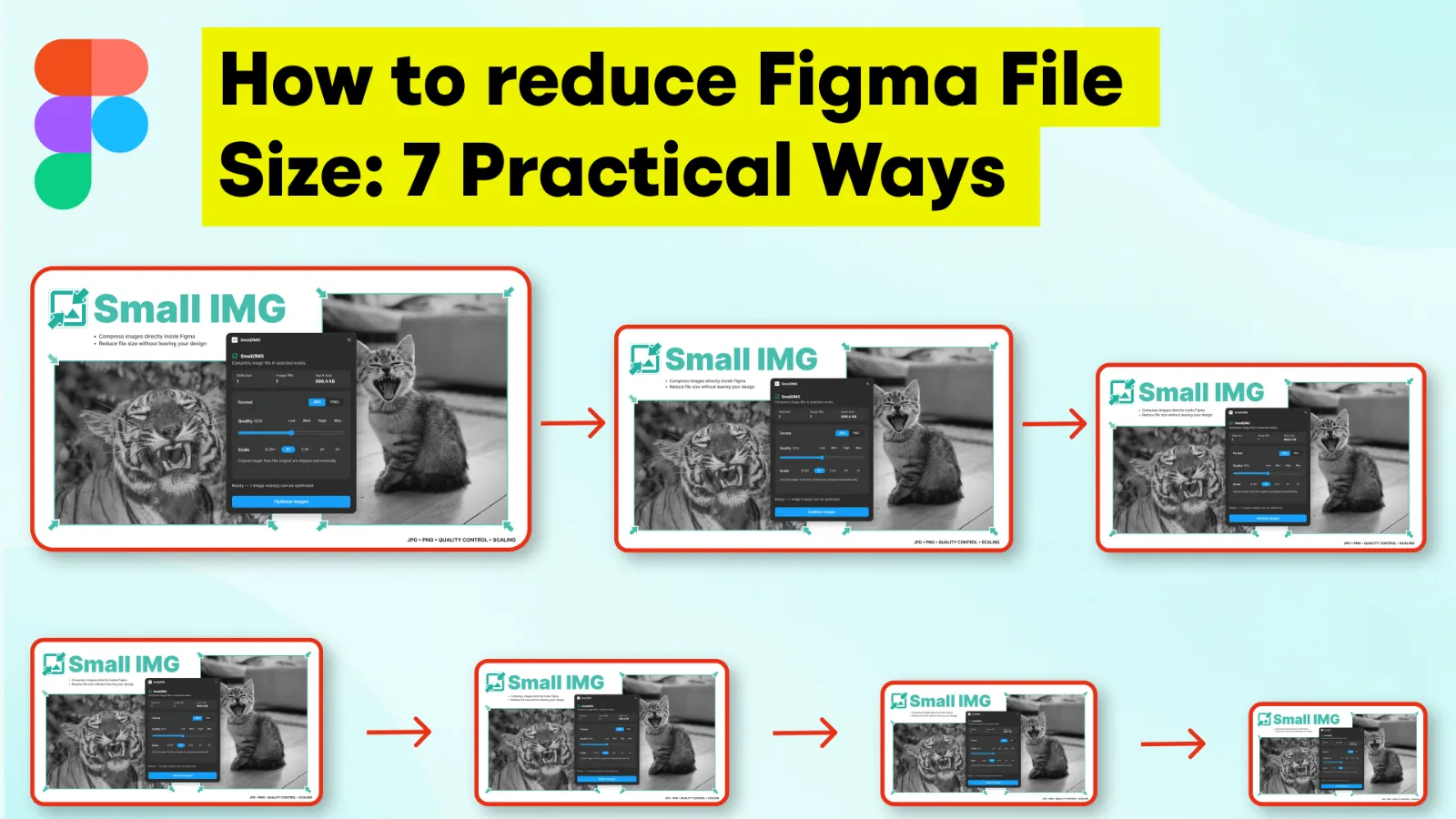
How to Reduce Figma File Size: 7 Practical Ways
A Figma file can grow surprisingly quickly. Large images, unused components, duplicated assets, and increasingly complex pages can all contribute to a larger and harder-to-manage design file.
If your Figma file size is getting out of control, you don't necessarily need to rebuild your project. There are several practical ways to reduce unnecessary data and keep your design files easier to work with.
Why Does Figma File Size Increase?
Design files naturally become larger as a project evolves. New screens are added, old explorations remain in the file, components are duplicated, and images are imported directly from cameras, stock libraries, or websites.
Images are particularly easy to overlook. A photograph might only occupy a relatively small area of a design while the original image contains far more resolution and image data than the interface actually needs.
Over time, these small decisions can accumulate across dozens of pages and hundreds of layers.
How to Reduce Figma File Size
You don't need to optimize everything at once. Start with the parts of your project that are most likely to contain unnecessary data and work through them gradually.
- Compress oversized images
- Resize images to appropriate dimensions
- Archive unused design explorations
- Clean up duplicate components
- Split very large projects into logical files
- Review unnecessary assets
- Keep files organized as you work
1. Compress Images Before or Inside Figma
Large images are a good place to start when trying to reduce the amount of unnecessary data in a design file.
Images downloaded from stock websites or exported from photography tools can be significantly larger than what is required for a UI mockup. Compressing them before using them — or using an image compression plugin directly inside Figma — can make your assets more appropriate for their intended use.
I built Small IMG specifically to make this process quick inside Figma. You can compress PNG and JPG images without leaving your design workflow.
2. Resize Images to the Resolution You Actually Need
Compression isn't the only consideration. Image dimensions matter too.
If an image is displayed as a relatively small card or thumbnail in your interface, importing an extremely high-resolution original may be unnecessary. Preparing images closer to their intended dimensions can reduce the amount of image data you're carrying around in the project.
3. Remove Old and Unused Design Explorations
Design files often become archives without anyone deliberately deciding that they should become archives.
Old landing-page concepts, abandoned flows, duplicate screens, and temporary experiments can remain in the same file for months. If you want to preserve them, consider moving old explorations into a separate archive file instead of keeping every iteration in the active project.
4. Clean Up Duplicate Components
As a design system evolves, it's easy to end up with multiple versions of essentially the same component.
Review local components periodically and remove obsolete duplicates when you're confident they're no longer being used. A cleaner component structure also makes the file easier for other designers to understand.
5. Split Very Large Projects Into Logical Files
Not every screen in a product has to live inside a single Figma file.
For a sufficiently large product, separating areas such as the design system, marketing website, application flows, and archived work can make the project easier to navigate and maintain.
6. Review Large or Unnecessary Assets
Images aren't the only assets worth reviewing. Complex imported graphics and assets copied from other projects can accumulate as a design evolves.
If an asset is no longer being used, remove it. If a complex asset can be simplified without affecting the design, consider simplifying it. The goal isn't to aggressively optimize everything — it's to avoid carrying unnecessary content indefinitely.
7. Keep Your Figma Files Organized as You Work
File cleanup is much easier when it isn't postponed for six months.
Archive finished explorations, remove obvious duplicates, use shared components where appropriate, and optimize large assets as they're introduced. A little maintenance during the project is usually easier than a huge cleanup later.
Start With Images
If you're looking at a large Figma project and don't know where to begin, images are one of the easiest things to inspect.
Look for large photographs, hero images, backgrounds, mockups, and assets imported directly from stock websites. Ask whether they really need their original resolution and quality for the way they're being used.
For projects containing lots of raster images, optimizing these assets can also make them more suitable for eventual use on the web.
Figma File Size FAQ
Why is my Figma file so large?
Large images, many screens, old design explorations, duplicated components, and complex assets can all contribute to the overall complexity and size of a Figma project.
Do images affect Figma file size?
Raster images contribute data to your project, so projects containing many large PNG or JPG assets are worth reviewing when you're trying to optimize a Figma file.
Should I compress images before importing them into Figma?
You can optimize images before importing them, but you can also use a Figma image compression plugin to optimize images as part of your existing design workflow.
Can I compress images directly in Figma?
Yes. Image compression plugins can help optimize raster assets without requiring you to repeatedly export them, use another application, and bring them back into your project.
Final Thoughts
Reducing Figma file size isn't about obsessively optimizing every layer. It's mostly about keeping unnecessary content from accumulating as your project grows.
Start with the obvious candidates: oversized images, old explorations, duplicated components, and assets you no longer need. Then build those cleanup habits into your normal design workflow so the file stays manageable over time.
Reduce Image Size Without Leaving Figma
Small IMG is a lightweight Figma plugin I built for compressing PNG and JPG images directly inside Figma. It's designed for a quick workflow: select your images, optimize them, and get back to designing.
Install Small IMG from the Figma Community →